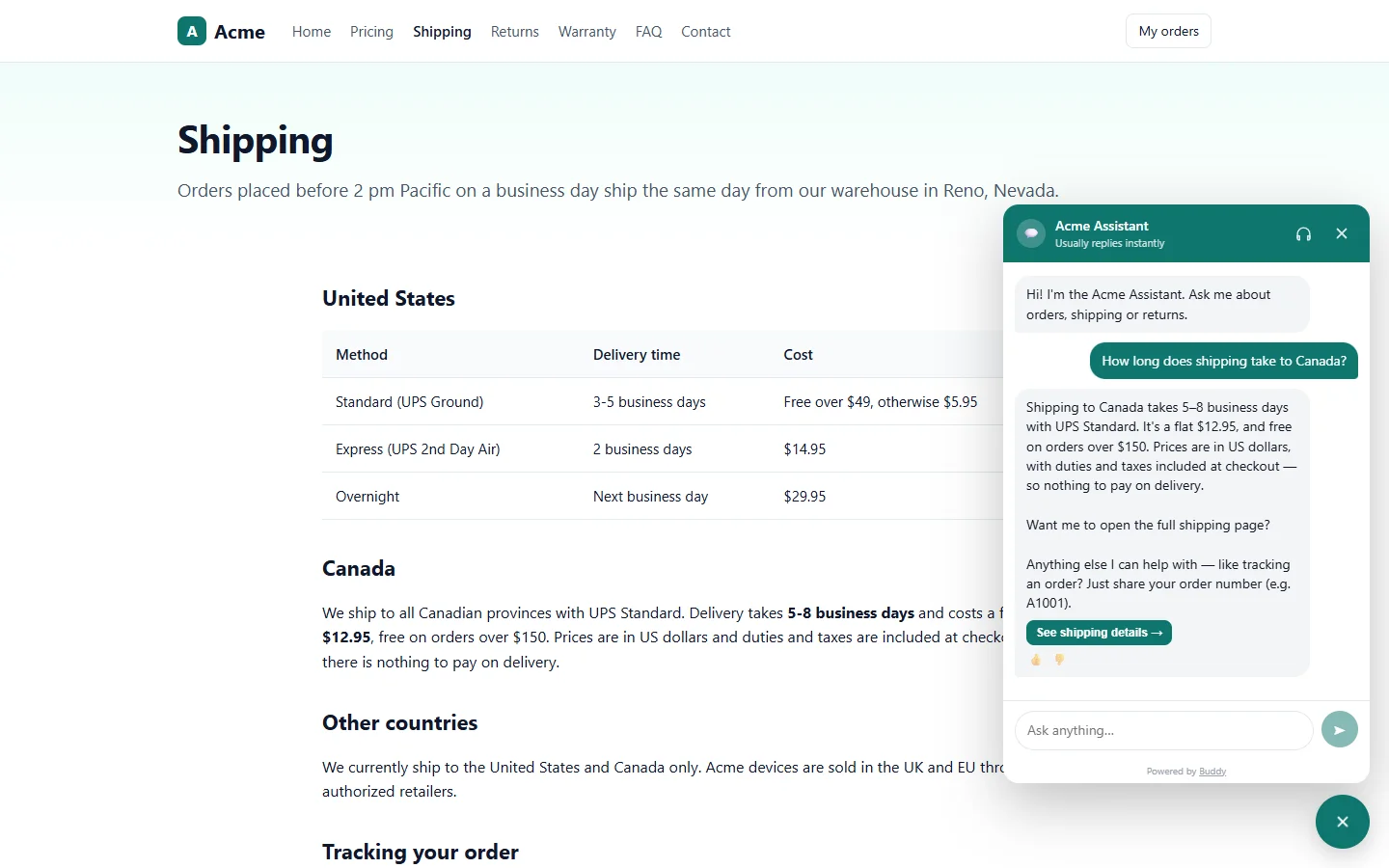
Buddy doesn't just describe where things are, it can take visitors there. Ask Acme Assistant “where do I start a return?” and it answers with a button, such as Start a return →, that opens your returns page. This guide explains how to control where it can go.
The site map
Open an agent and go to the Navigation tab. The Site map lists every page the agent may send visitors to. Pages found by your website crawl are added automatically (source crawl). Pages you add yourself show as manual.
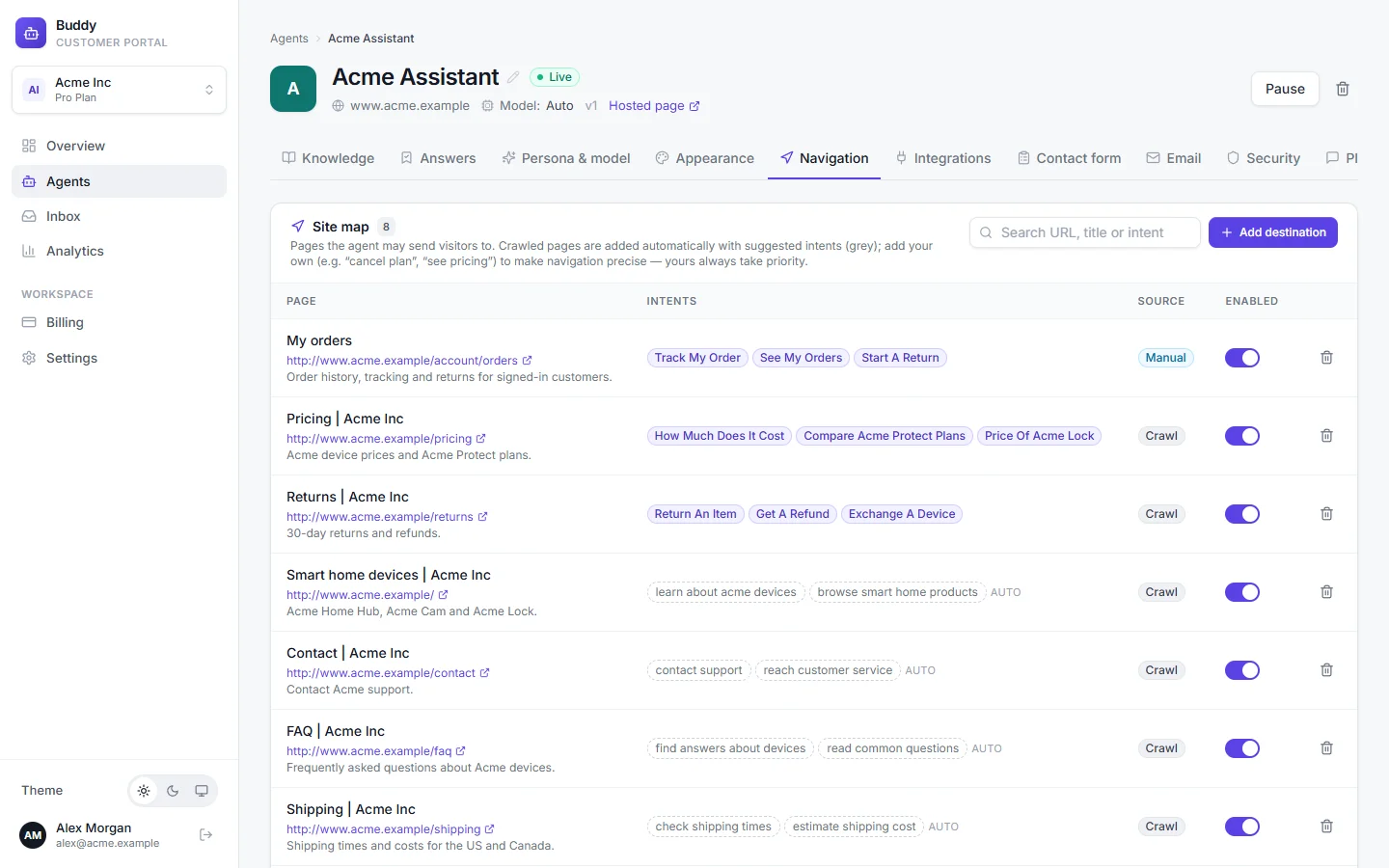
- Page
- The page title and URL.
- Intents
- When the agent should send visitors to this page, e.g. "start a return", "return policy".
- Source
crawlormanual.- Enabled
- Switch a page off to stop the agent from sending people there.
Suggested and curated intents
After a crawl, Buddy suggests intents for each page from its content. They appear as grey, dashed chips marked auto. Intents you write yourself are curated. They replace the suggestions for that page and always take priority. Add curated intents for your most important pages, such as pricing, returns, order tracking or cancelling a plan.
Add a destination
Click Add destination
Fill in the page
URL and Title are required, for example
https://www.acme.example/returnsand “Returns”. In When to send visitors here, list intents separated by commas: start a return, return policy, refund. Summary optionally describes the page.Click Add
Navigation changes apply immediately; there's nothing to publish.
Button or automatic navigation
By default the agent shows a button under its answer and the visitor clicks it. To open the page automatically 1.5 seconds after the answer finishes, switch on Auto-navigate after 1.5s when the agent suggests a page on the Persona & model tab.
How pages open
Links to another website, and links on the hosted page, open in a new tab. Pages on your own site open in the same tab, and the chat stays with the visitor:
- Classic websites (WordPress, Shopify, Webflow and similar): the page loads normally, and the chat reopens on the new page with the conversation intact.
- Single-page apps (React, Next.js, Vue, Angular, SvelteKit, Nuxt): Buddy changes the page without a reload, so the chat simply stays open.
Single-page apps without a reload
Buddy tries these in order, and stops at the first one that works:
- Your own router, if you registered one with
Buddy.setNavigator(below). - The Next.js router, when one is available on the page.
- Clicking your app's own link to that page, which React Router, Next.js
<Link>, Angular, Vue and SvelteKit route in place. - Your router's history (on apps other than Next.js), then checking that the page actually re-rendered.
- A normal page load. The chat reopens there with the conversation.
For the most reliable result, hand Buddy your router. Add one of these once, after the widget script has loaded:
// React Router
const navigate = useNavigate();
useEffect(() => window.Buddy?.setNavigator((url) => navigate(url)), [navigate]);

// Next.js (app router)
const router = useRouter();
useEffect(() => window.Buddy?.setNavigator((url) => router.push(url)), [router]);

// Angular (inject Router)
(window as any).Buddy?.setNavigator((url: string) => this.router.navigateByUrl(url));

// Vue Router
window.Buddy?.setNavigator((url) => router.push(url));
Your function receives the path, query and hash (e.g. /returns?order=A1001) for pages on your own site. Return falseto let Buddy handle that URL itself. Pass null to remove your navigator.
Handle navigation yourself
For full control, listen for the action event and return true when you've handled it:
window.Buddy.on("action", (a) => {
  if (a.type === "navigate") {
    myRouter.go(a.url);
    return true; // handled: Buddy won't navigate itself
  }
});
See the full JavaScript API.
Troubleshooting
›The agent never offers a button
Check that the page is in the Site map and Enabled, and give it clear curated intents that match how visitors ask. Test with a direct request like “take me to returns” in the playground.
›It opens the wrong page
Add curated intents to the right page, and switch off pages that shouldn't be destinations (for example old campaign pages).
›My single-page app reloads fully
Register your router with Buddy.setNavigator as shown above. Without it, Buddy falls back to a normal page load when it can't confirm your app re-rendered.