Connect your support mailbox, e.g. [email protected], and Buddy answers customer emails with the same knowledge as your website agent. It writes replies in the original thread, from your own address. By default it only drafts them for you to review and send.
Growth+ Email replies are included on Growth (1 mailbox) and Pro (3 mailboxes), and during your trial.
Connect a mailbox
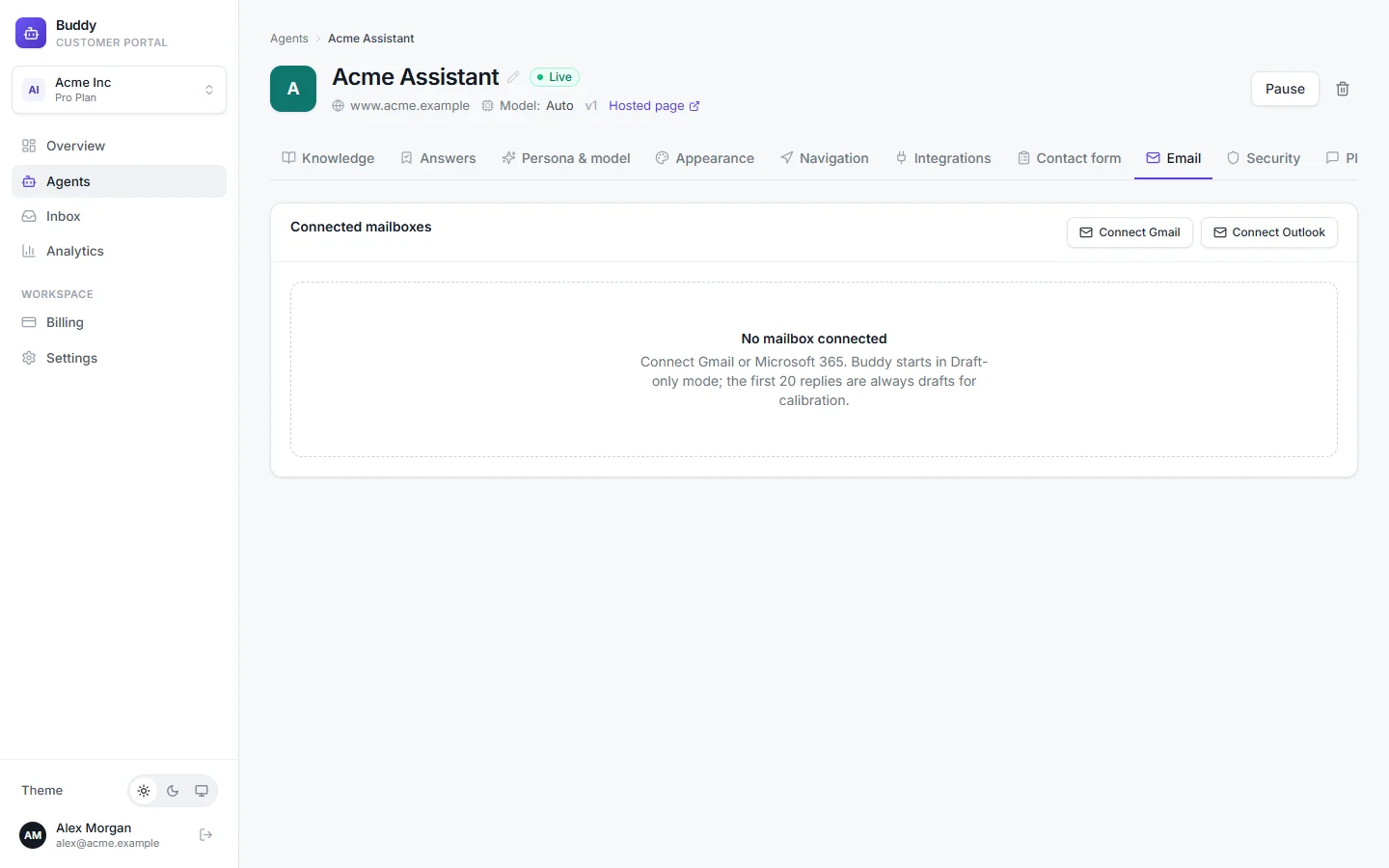
Open the agent and go to the Email tab
Click Connect Gmail or Connect Outlook
Sign in with the mailbox you want Buddy to answer and approve access. Google Workspace and Microsoft 365 accounts both work, with no forwarding rules or DNS changes.
Check the mailbox card
It shows the address, provider and status, and when it last synced. New email usually arrives within moments. As a backup, Buddy also checks every 10 minutes. Click Sync now to check straight away.
Only owners and admins can connect mailboxes. Every mailbox starts in Draft only mode.
Choose a reply mode
- Off
- Monitor only. Buddy doesn't write any replies.
- Draft only (default)
- Buddy writes a draft in your mailbox, in the thread. You review, edit and send it yourself.
- Auto-send when confident
- Sends only when the AI's confidence is at or above your threshold and the email's category is allowed. Otherwise it drafts.
- Auto-send always
- Sends every answerable email. Use it with a footer in your signature that says replies are AI-assisted.
In Auto-send when confident, emails still become drafts when the AI thinks a person should handle them or the customer sounds upset.
Mailbox settings
- Confidence threshold for auto-send
- From 0.5 to 0.99. Default 0.8. Higher means fewer, safer auto-sends.
- Auto-send categories
- Categories allowed to auto-send. Default:
how_to,pricing,shipping,account. - Always escalate categories
- Always left for a person. Default:
refund,legal,complaint. The other categories aresalesandother. - Only reply when addressed to
- Comma-separated aliases, e.g. [email protected]. Empty means any address in the mailbox.
- Ignore sender domains
- Domains whose emails are never answered, e.g. your suppliers.
- Signature (HTML)
- Added to every reply, up to 4,000 characters. If empty, replies end with the agent's name.
Click Save mailbox to apply.
What Buddy never answers
To avoid reply loops and awkward mistakes, Buddy skips:
- auto-replies, out-of-office messages and bulk mail such as newsletters;
- no-reply senders and emails from your own domain;
- emails from ignored domains, or not addressed to your aliases;
- emails asking not to be contacted (“unsubscribe”, “stop emailing”);
- threads a person on your team, or Buddy itself, answered in the last 24 hours;
- anything that isn't a customer question.
Each mailbox sends at most 200 replies a day. The Recent activity table shows every email Buddy processed and its decision: sent, drafted, escalated or skipped (with the reason).
Where email conversations appear
Every email thread also appears in the Inbox. Replying there sends your answer from the connected mailbox, in the same thread. Email replies count toward your monthly AI messages, just like chat.
Train on past emails
Pro On Pro, click Train on past emails (12 months) to teach Buddy from how your team already answers customers. It reads up to 2,000 threads and builds:
- a Q&A knowledge source called Email history — [email protected], made from customer questions and your replies, with personal details removed. Review it on the Knowledge tab;
- a writing-style profile from your sent replies, so drafts sound like your team. It appears on the Persona & model tab.
Disconnect a mailbox
Click the disconnect icon on the mailbox card and confirm. Buddy stops reading and replying straight away.
Plan limits
| Free | Starter | Growth | Pro | |
|---|---|---|---|---|
| Gmail / Outlook mailboxes | 1 | 3 | ||
| Train on past emails |
Troubleshooting
›The mailbox says needs_reauth
Access was revoked or expired, for example after a password change. Reconnect the same mailbox with Connect Gmail or Connect Outlook.
›An email wasn't answered
Find it in Recent activity. If it was skipped, the reason is shown, such as an auto-reply, an ignored domain or a recent human reply.
›Auto-send is on, but replies are still drafts
During calibration the first 20 replies are always drafts. After that, emails below your confidence threshold, in an escalate category or from an upset customer are still drafted on purpose.