An agent is one AI assistant, with its own knowledge, personality, look and security rules. Most businesses need one agent per website or brand. In this guide you'll create Acme Assistant for your site, e.g. www.acme.example.
Create an agent
Go to Agents and click New agent
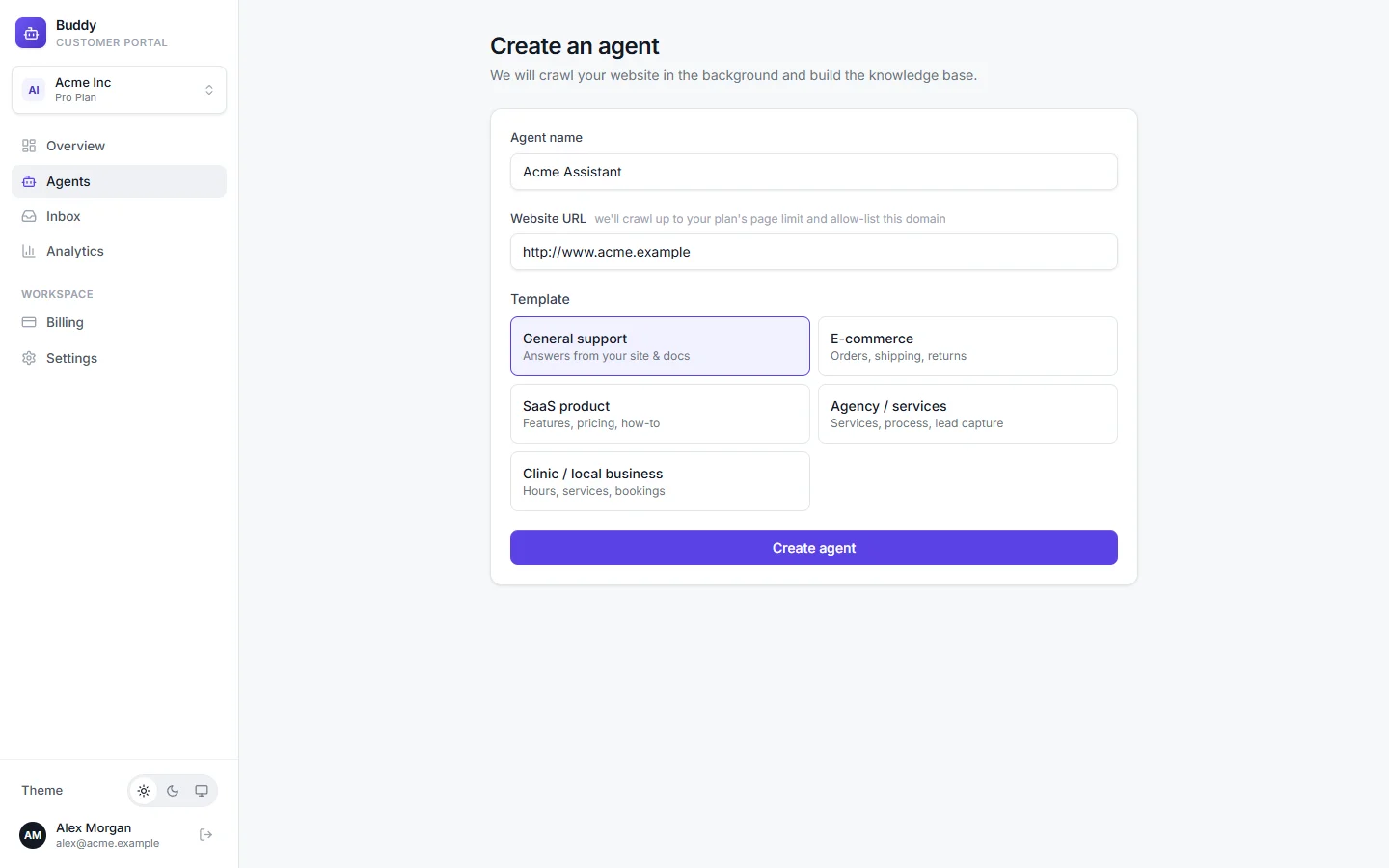
Enter an Agent name
Use the name your team will recognise, for example Acme Assistant. It also becomes the chat window's title, which you can change later on the Appearance tab.
Enter your Website URL
For example
https://www.acme.example. It's optional, but it's the quickest way to get started. Buddy crawls the site in the background, up to your plan's page limit, and adds the domain to the agent's allow-list so the widget can load there.Pick a Template
A template writes starter instructions for the agent. You can edit them at any time on the Persona & model tab.
Click Create agent
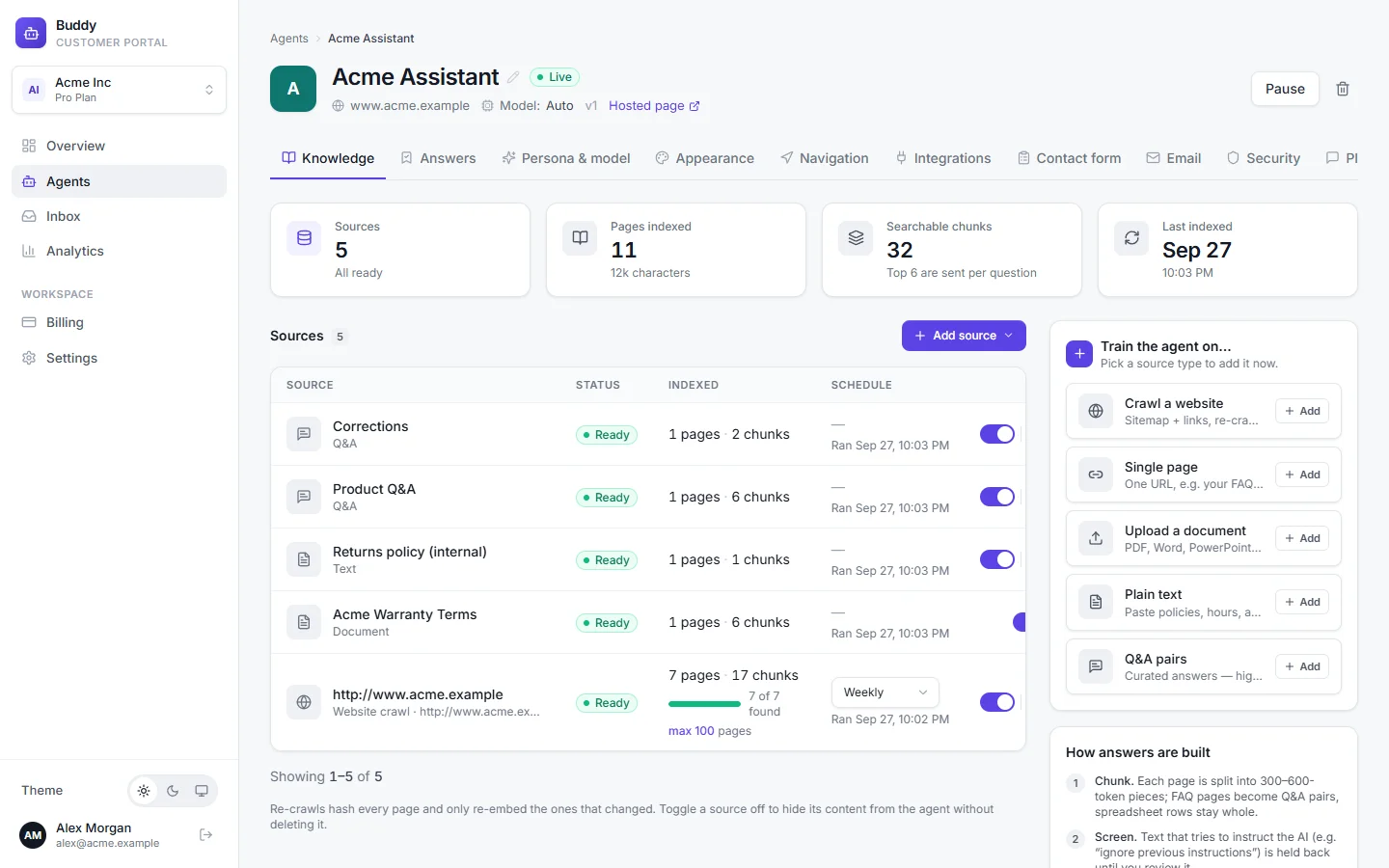
You're taken to the agent's Knowledge tab, where you can watch the crawl progress and add more sources.
Templates
Each template only sets the agent's instructions. Everything else starts the same.
| Template | Best for | What the instructions say |
|---|---|---|
| General support | Answers from your site & docs | A friendly, concise support assistant for your business. |
| E-commerce | Orders, shipping, returns | Upbeat and concise. Points shoppers to your returns policy page and never promises refunds. |
| SaaS product | Features, pricing, how-to | Links to your docs, guides users to the right settings page, and escalates billing disputes to a human. |
| Agency / services | Services, process, lead capture | Explains services, process and price ranges, and asks interested visitors for their name and email. |
| Clinic / local business | Hours, services, bookings | Answers about hours, services, insurance and appointments, and never gives medical advice. |
The agent page
Open any agent from the Agents list to configure it. The page has these tabs:
- Knowledge
- Websites, pages, files, text and Q&A the agent learns from. Add knowledge
- Answers
- The answer bank of approved answers and suggestions. Answer bank and knowledge gaps
- Persona & model
- Instructions, tone, guardrails, starters and the AI model. Persona, rules and AI model
- Appearance
- Colours, launcher and welcome message. Widget appearance
- Navigation
- The pages the agent may send visitors to. Page navigation
- Integrations
- Your own APIs the agent can call. API actions
- Contact form
- Lead capture, the human handoff button and alerts. Contact form and handoff
- Gmail and Outlook replies. Gmail and Outlook replies
- Security
- Allowed domains, rate limits, IP and country rules, signed identity. Security and privacy
- Playground
- Chat with the agent before it goes live. Test in the playground
- Embed
- The code to add it to your site, and the hosted page. Add Buddy to your website
The header shows the agent's status (draft, live or paused), its allowed domain, the model, the published version (for example v3) and a Hosted page link when the hosted page is on. Click the agent's name to rename it.
Drafts and publishing
Your visitors always see the published version of the agent. That lets you edit the persona and appearance safely. When you change either of them, the header shows an amber Unpublished changes badge: visitors still see the last published version until you publish again.
Make your changes and save them on each tab
Try them on the Playground tab
The playground always uses your latest draft, so you can test before anyone else sees it.
Click Publish (first time) or Publish changes
The agent goes
liveand the version number goes up. Open widgets pick up the new version within about a minute.
A new agent starts as a draft, and the widget and hosted page only load for a live agent. Publish at least once before you embed it. To take an agent offline temporarily, click Pause. Publishing again makes it live.
Delete an agent
Click the delete icon in the agent header and confirm. The agent stops answering immediately. Its conversations are kept according to your workspace's retention setting.
How many agents you can have
| Free | Starter | Growth | Pro | |
|---|---|---|---|---|
| Agents | 1 | 1 | 3 | Unlimited |
If you've reached your limit, you'll see “Your plan allows N agent(s). Upgrade to add more.”
Troubleshooting
›My edits don't show up on the website
Check for the Unpublished changes badge and click Publish changes. Open widgets refresh within about a minute.
›The widget doesn't appear at all
Make sure the agent is live (not draft or paused) and that your site's address is on the Security tab's domain allow-list. See embed troubleshooting.
›The crawl found very few pages
See knowledge troubleshooting. You can raise Max pages on the source and re-run it.