Some conversations need a person: a refund dispute, a sales enquiry, a question your content can't answer. Buddy can collect the visitor's details in the chat, let them ask for a human at any time, and alert your team straight away. Everything here is on the agent's Contact form tab, and changes apply without publishing.
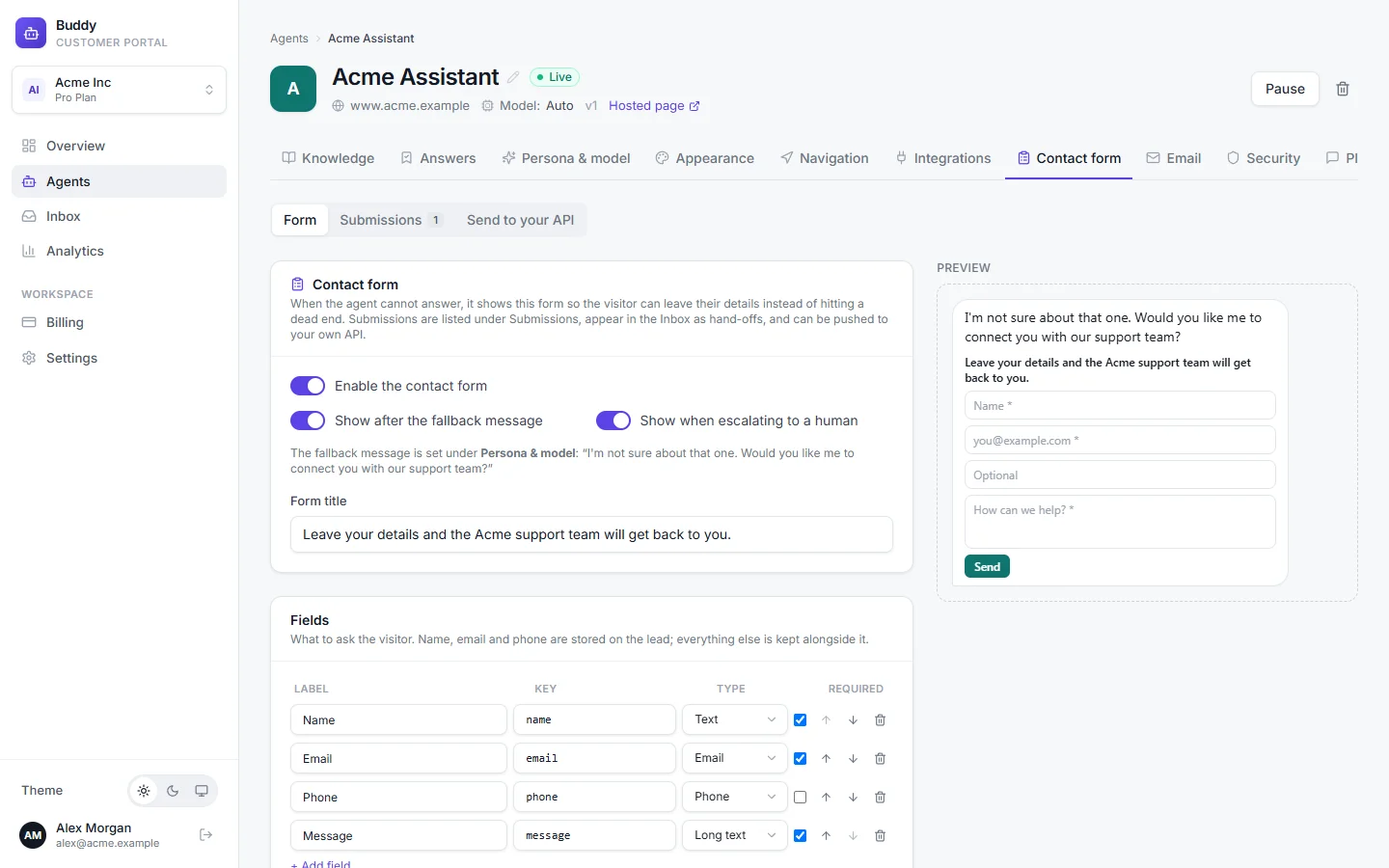
Set up the contact form
Switch on Enable the contact form
The agent can then offer the form whenever a visitor wants to be contacted.
Choose when else it appears
- Show after the fallback message
- When the agent couldn't answer from your knowledge.
- Show when escalating to a human
- When the agent hands the conversation to your team.
Edit the Form title and Fields
The default fields are Name (required), Email (required), Mobile (optional) and Message (required). Add up to 8 fields of type Text, Email, Phone or Long text, reorder them, and mark them required. Name, email and phone are stored on the lead; other fields, such as “Order number”, are kept alongside it.
Set the Submit button and Thank-you message
Defaults: “Send” and “Thanks! Our team will get back to you shortly.”
Save
Offer a human
In the Human hand-off card, Show a “Talk to a human” button in the chat header is on by default. Visitors can use it at any time. The agent also hands off on its own when a visitor asks for a person or when it judges that a human is needed.
Every hand-off appears in your Inbox as needs human, with a summary and an urgency level. Your reply appears in the visitor's chat.
- Contact details when chat is down
- Optional, e.g. [email protected] · +1 555 0100. Shown only if the assistant can't be reached and the contact form fails too.
- Slack alerts
- Optional. A Slack incoming-webhook URL (starting with
https://hooks.slack.com/). Each new hand-off is also posted to that channel.
See submissions
The Submissions view on the Contact form tab lists this agent's leads. For every agent at once, go to Inbox → Contact submissions, where you can search and export them to Excel or CSV. Each lead links to its conversation.
Send leads to your CRM
Use Send to your API on the Contact form tab to push each submission to your own endpoint or CRM as it arrives.
Enter your endpoint
Choose
POST,PUTorPATCHand the URL. Add any headers your endpoint needs; they're encrypted at rest.Choose the body
Standard JSON sends the payload below. Custom template lets you shape it for your CRM with placeholders such as
{lead},{lead_id}and{conversation_url}.Try Send test
Under Test with a sample submission. Nothing is saved.
Click Enable push to API
{
  "event": "lead.created",
  "id": "…",
  "created_at": "2026-09-27T10:04:12Z",
  "agent": { "id": "…", "name": "Acme Assistant" },
  "conversation_id": "…",
  "conversation_url": "…",
  "lead": { "name": "…", "email": "…", "phone": "…", … }
}
Verify and retry
- Each request carries
X-Buddy-Event,X-Buddy-Delivery(the lead id, the same on retries, so you can de-duplicate) andX-Buddy-Signature: t=<unix>,v1=<hex>. - The signature is an HMAC-SHA256 of
<t>.<raw body>using yourwhsec_…secret, the same scheme as event webhooks. Use Rotate to replace the secret. - Network errors, timeouts, 429 and 5xx responses are retried for about 15 minutes.
- Each lead shows its delivery status (Delivered, Failed, Retrying), and Send again pushes it once more.
Need every event, not just leads? Event webhooks on Pro also cover hand-offs, conversations and more.
Troubleshooting
›Nobody got the hand-off email
Alerts go to owners and admins only. Check the spam folder, and add a Slack webhook for a second channel.
›The form never appears
Check Enable the contact form and the triggers. The fallback trigger only fires when the agent can't answer, so ask something it can't know in the playground.
›Lead pushes fail
Open the lead in Submissions to see its delivery status, fix your endpoint, then click Send again.