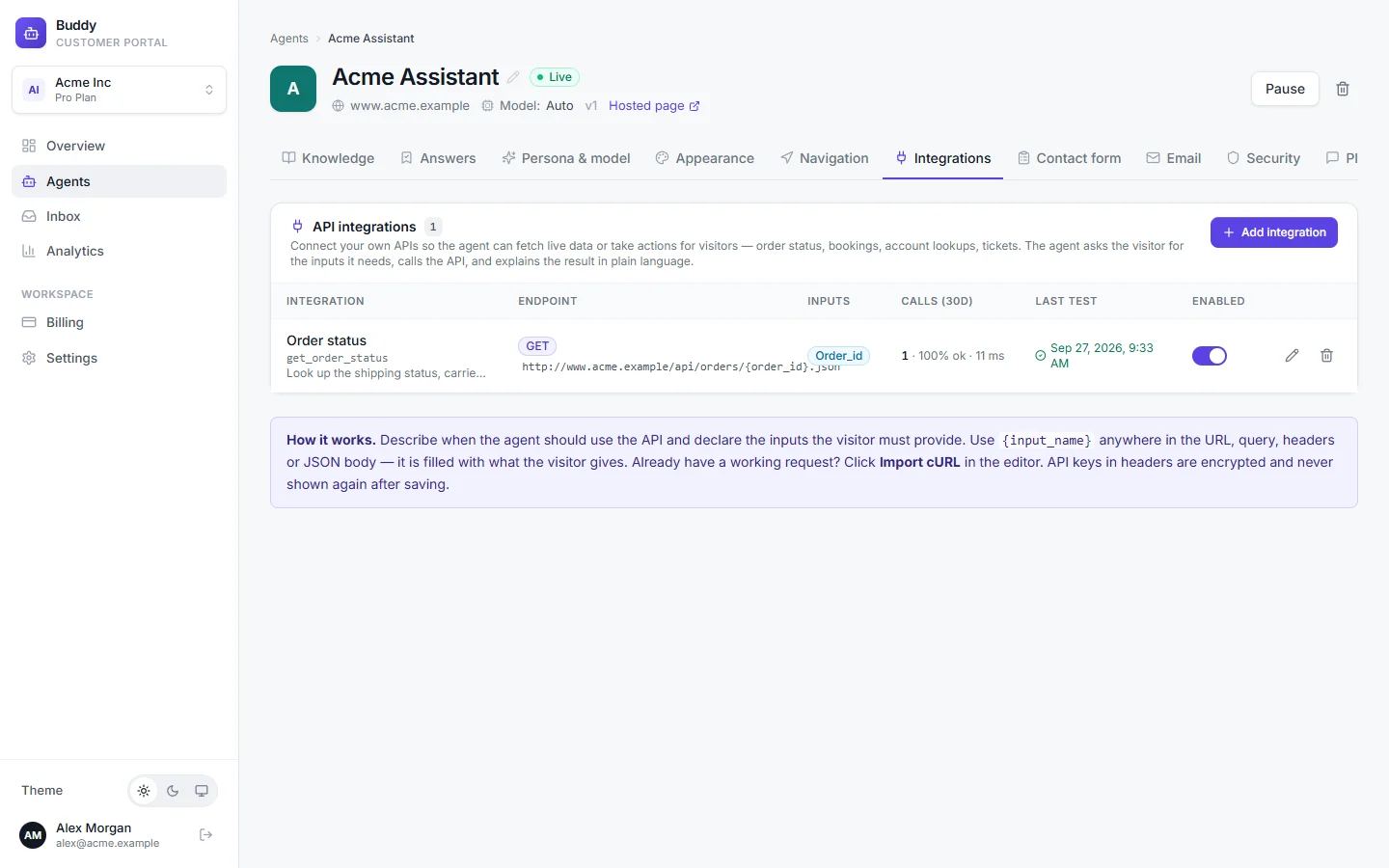
API actions let your agent fetch live data or take actions for visitors: order status, stock checks, bookings, account lookups. The agent asks the visitor for what it needs, calls your API, and explains the result in plain language. In this guide you'll build an Order status integration for Acme Inc.
How it works
A visitor asks “Where's my order?”:
- The agent reads your integration's description and decides Order status fits.
- It needs an order number, so it asks: “What's your order number?”. It never guesses or invents IDs.
- The visitor answers
A1001. Buddy calls your API with it. - The agent explains the result: “Order A1001 shipped yesterday and should arrive Thursday.”
If the call fails, the agent says it couldn't retrieve the information right now and offers a human.
Create an integration
Open the agent's Integrations tab and click Add integration
Choose how to start: a template (Look up a record by ID, Search, Create a record), Paste a cURL command, or Start blank.
Describe it
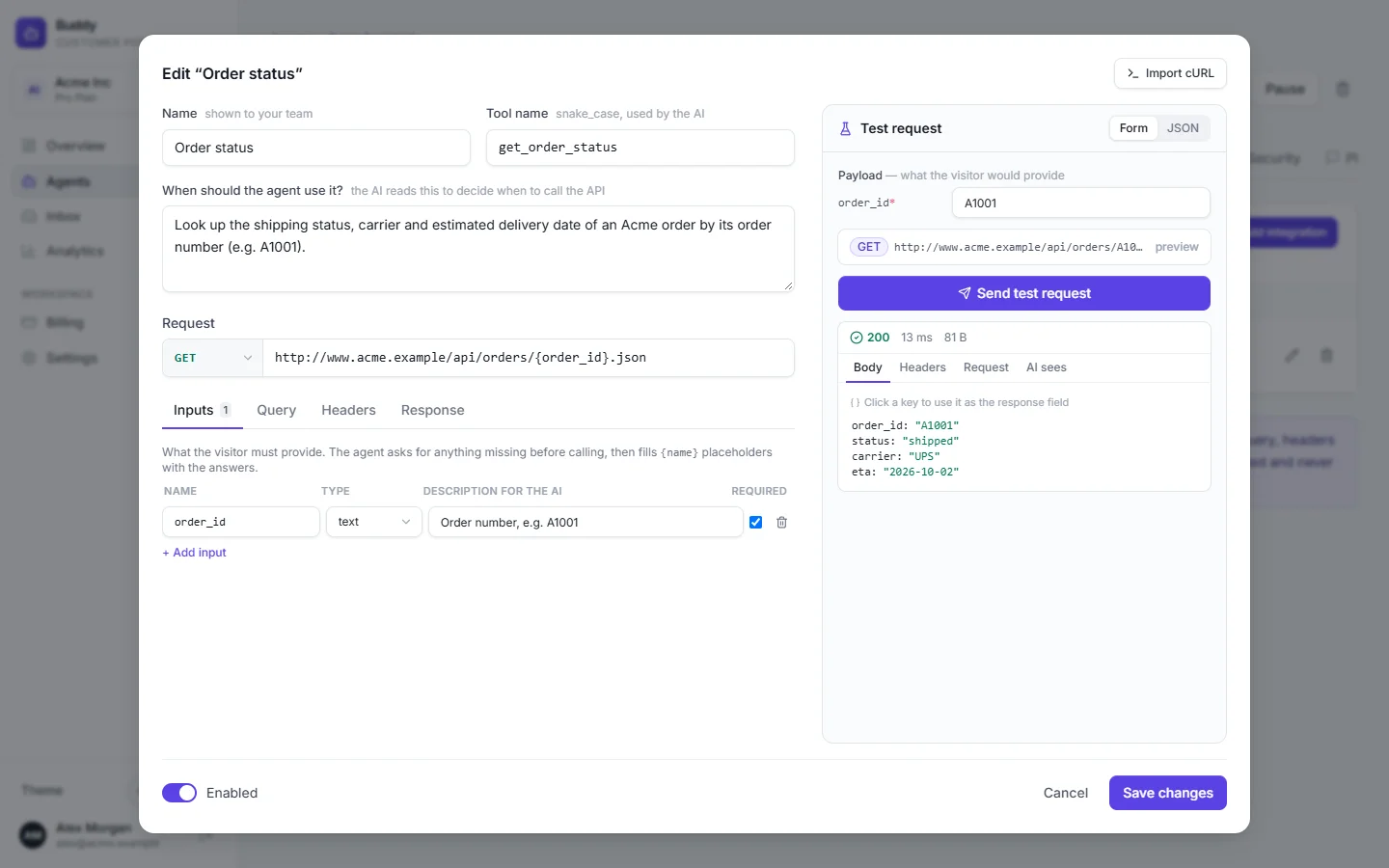
Name is shown to your team (“Order status”). Tool name is the name the AI uses, in snake_case (
order_status). When should the agent use it? matters most, because the AI reads it to decide when to call your API. For example: “Look up the shipping status of an Acme order when a customer asks where their order is. Needs the order number, e.g. A1001.”Set the request
Pick the method (
GET,POST,PUT,PATCHorDELETE) and URL. Use{input_name}placeholders for values the visitor provides, e.g.https://api.acme.example/v1/orders/{order_id}.Declare the inputs
On the Inputs tab, add each placeholder with a Type (text, integer, number or yes/no), a Description for the AIand whether it's Required. You can add up to 12 inputs. Every placeholder must match an input, or saving fails.
Test it, then click Add integration
Integrations apply immediately, with nothing to publish. Use the Enabled switch to turn one off without deleting it.
Editor tabs
- Inputs
- The values the agent collects from the visitor.
- Query
- Parameters appended to the URL as ?key=value. Empty values are skipped.
- Headers
- For example Authorization: Bearer …. Values are encrypted at rest and masked after saving; leave a masked value unchanged to keep it.
- Body
- A JSON body for POST, PUT and PATCH. Placeholders inside quotes become strings; bare ones become numbers or true/false.
- Response
- Response field picks the part of the response the AI sees (a dotted path such as
data.status, or click a key in a test response). Timeout (seconds) is 1–30, default 10. How to present the result gives the AI extra guidance.
Import a cURL command
Already have a working request from Postman, your API docs or your browser's DevTools (“Copy as cURL”)? Choose Paste a cURL command, paste it, and click Parse:
curl https://api.acme.example/v1/orders/A1001 \
  -H "Authorization: Bearer YOUR_ACME_API_TOKEN"
Buddy then asks Which values should come from the visitor? Tick A1001 and it becomes an input the agent asks for. Everything else stays fixed. Click Use this request to fill in the editor. Browser-only headers are dropped, and -u user:passbecomes an Authorization header. File uploads (-F, @file) aren't supported.
Test before you go live
In the Test request panel, fill in sample inputs and click Send test request. It runs exactly as a live chat would, even before you save. The result has four tabs: Body, Headers, Request and AI sees, which shows the text the model receives. Test calls don't count in your integration stats. Then try a real conversation in the playground. Its Retrieval debug panel shows the API call and response.
Security and limits
- Encrypted secrets. Header values such as API tokens are encrypted at rest and never shown again in full.
- Public APIs only. Buddy refuses to call addresses on private, loopback or link-local networks, checks the address it actually connects to, and doesn't follow redirects.
- Limits. Each call times out after your timeout (at most 30 seconds). Very large responses are cut short before the AI sees them, so point Response field at what matters.
- No extra credentials. There are no built-in auth types. Add whatever header your API expects, and use a token that can only read what the agent needs.
See call volume, success rate and recent failures under Analytics → API integrations.
Troubleshooting
›The agent never calls my API
Make When should the agent use it? specific and include example questions. Check the integration is Enabled, then look at Integration matched in the playground's Retrieval debug.
›"resolves to a private address"
Buddy can only call APIs on the public internet. Expose the endpoint publicly (with authentication) or use a public gateway.
›The test works but the answer is vague
Set Response field to the part of the response that matters and add guidance in How to present the result.