The Inbox collects every chat and email conversation from all your agents in one place. Use it to follow what the AI is saying, step in when a visitor needs a person, and turn good replies into answers the agent reuses.
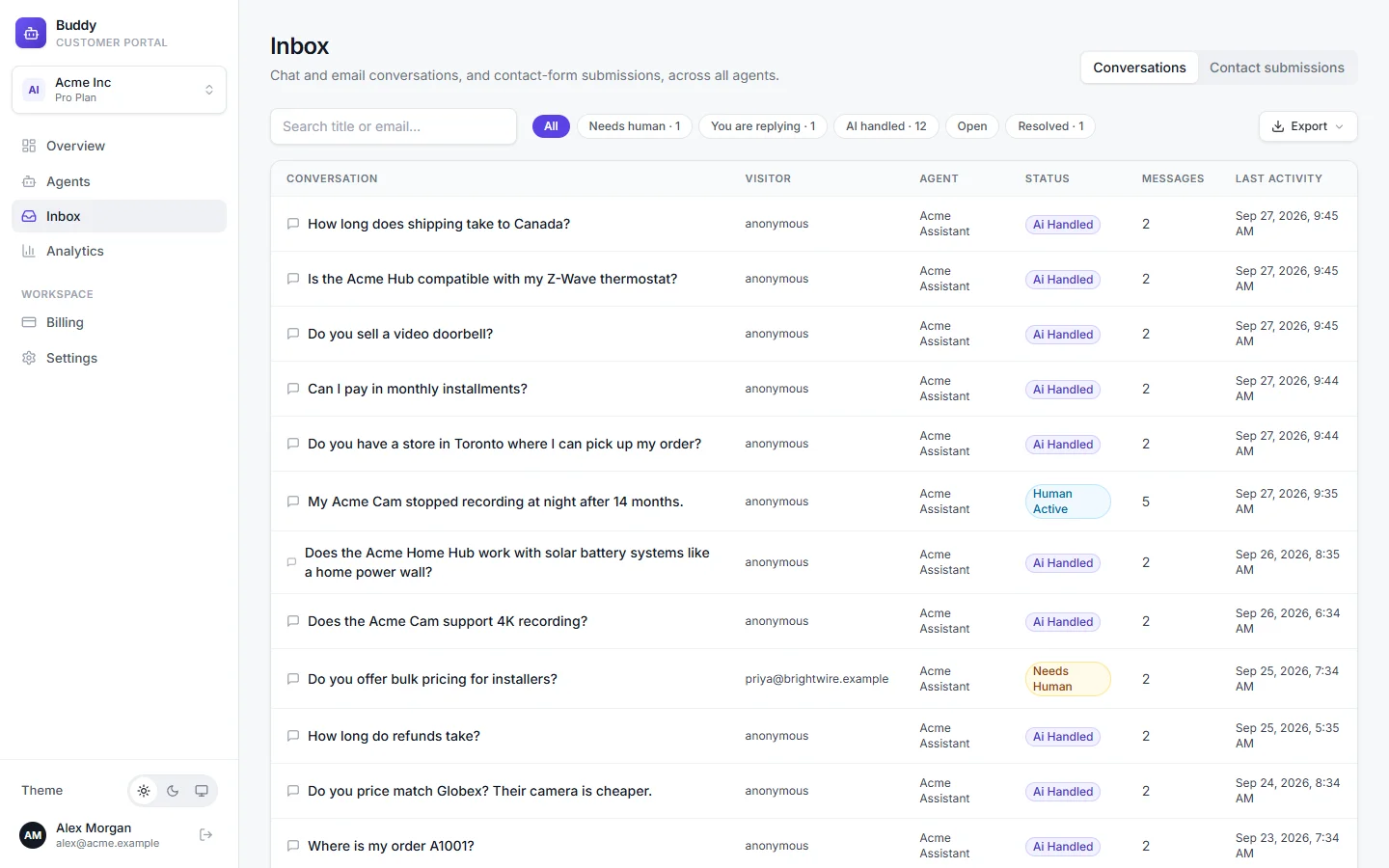
Find a conversation
Use the filters at the top to narrow the list, and search by conversation title or visitor email. A chat or mail icon shows the channel. Verified visitors (see signed identity) have a ✓ next to their name. The list refreshes by itself every 15 seconds.
- Needs human
- were handed off and are waiting for your team. Start here.
- You are replying
- a team member has taken over.
- AI handled
- the AI answered without help.
- Open
- are in progress.
- Resolved
- are closed.
Switch to Contact submissions at the top to see leads from the contact form. See Contact form and handoff.
Read a conversation
Open a conversation to see the full transcript. Each AI message shows:
- its confidence, detected intent and the model used;
- the visitor's thumbs up or down and any comment;
- numbered citations, when sources are shown;
- navigation actions, marked as auto-opened, clicked or blocked.
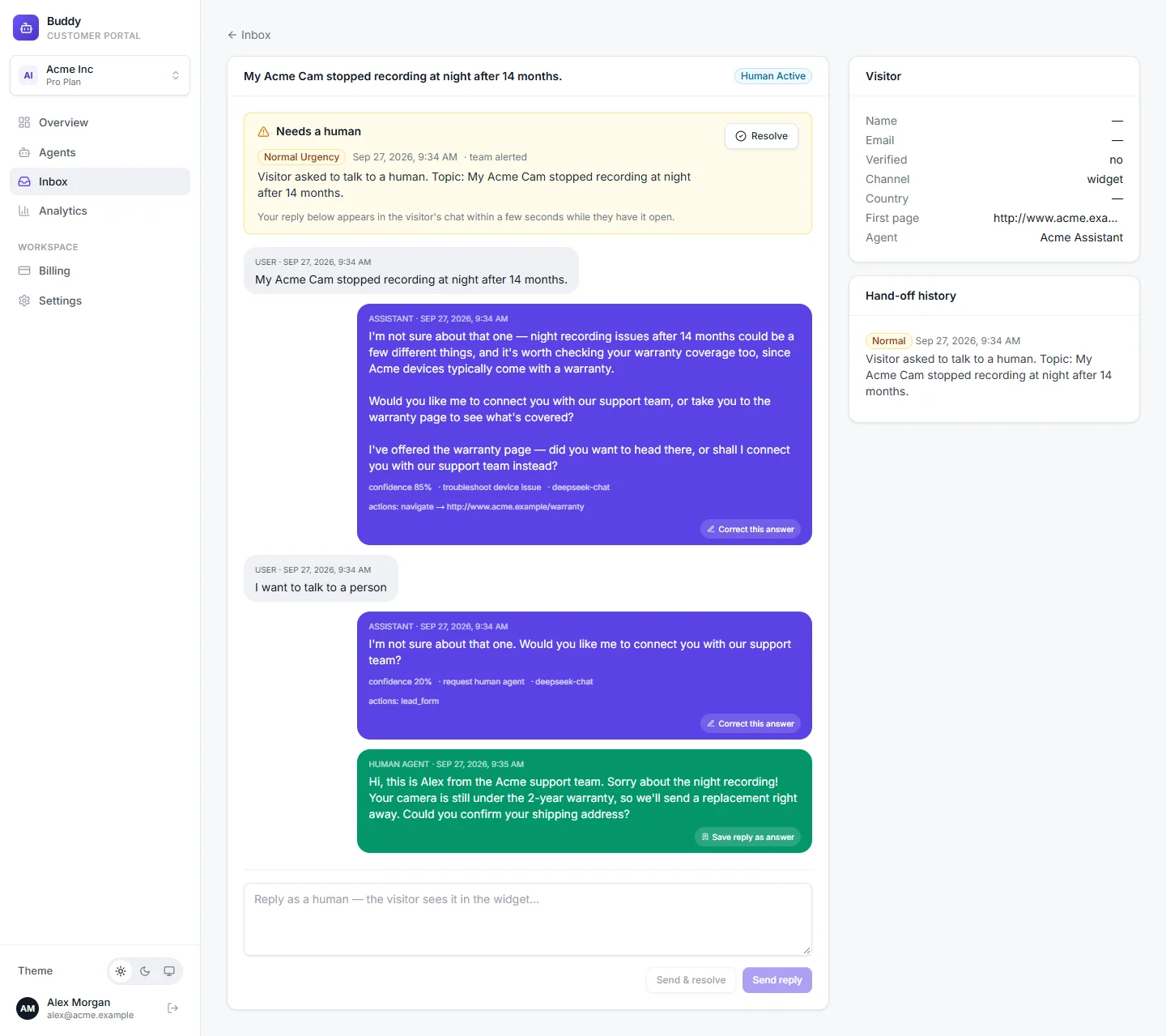
The side panel shows the Visitor (name, email, whether they're verified, channel, country, first page and agent), the Hand-off history and any Contact details they left.
Take over from the AI
When a conversation needs a person, a Needs a human banner shows the urgency, when it happened, whether the team was alerted, and a short summary. There's no separate take-over button: replying takes over.
Write your reply in the box at the bottom
For chats, the visitor sees it in the widget within a few seconds while they have the chat open, and the widget shows “Chatting with our team”. For emails, the reply is sent from the connected mailbox, in the same thread.
Click Send reply, or Send & resolve if you're done
The conversation moves to human active (“You are replying”), and the first person to reply is assigned the hand-off.
Click Resolve when the issue is closed
Resolving also closes any open hand-offs.
Correct an answer
Found a wrong AI reply? Click Correct this answer under it, write the right answer and save. Wrote a great reply yourself? Click Save reply as answer. Both add the answer to the agent's answer bank. It's live at once for owners and admins, and goes to review for the Agent role.
Export conversations
Click Export and choose Excel (.xlsx) or CSV (.csv). The export includes every conversation that matches your current filter and search, up to the newest 50,000. Tick Include full transcripts to add every message (a separate Messages sheet in Excel).
Who can do what
Everyone in the workspace can read the inbox. Replying, resolving and correcting answers needs the Agent role or higher. See Team and roles.
Troubleshooting
›The visitor didn't see my reply
Chat replies reach visitors who still have your site open. If they left, follow up by email using the contact details in the side panel.
›I can't reply or resolve
Viewers have read-only access. Ask an admin to change your role to Agent.
›Nobody noticed the hand-off
Owners and admins get an email for each one. Add Slack alerts on the agent's Contact form tab for faster pickup.