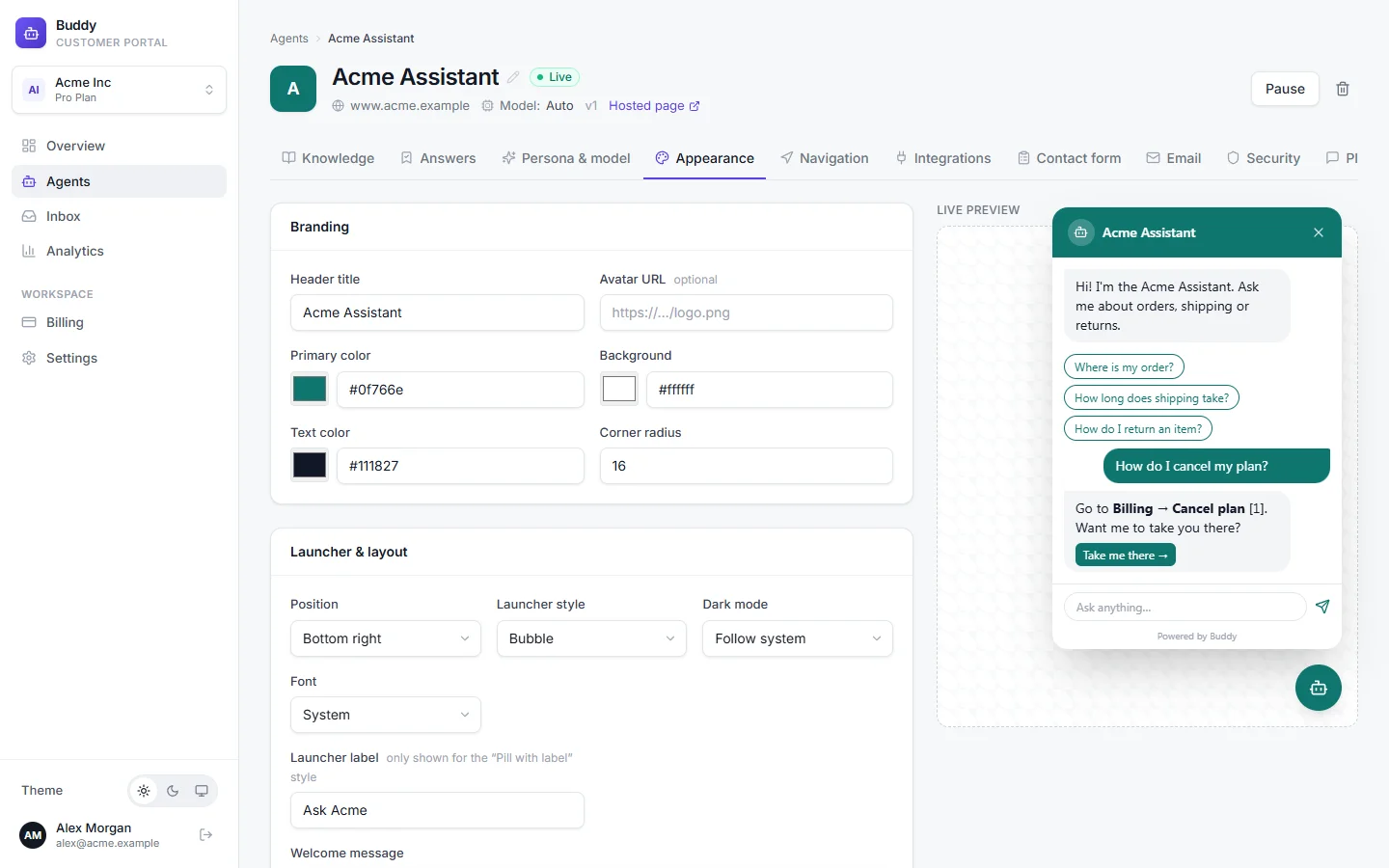
The Appearance tab controls how the chat widget looks on your site. Every change shows up immediately in the Live preview on the right, so you can try colours before saving.
Branding
- Header title
- The name at the top of the chat window, e.g. Acme Assistant. New agents use the agent's name.
- Avatar URL
- Optional. A link to a square logo or photo, e.g. https://www.acme.example/logo.png.
- Primary color
- Your brand colour, used for the launcher, header and buttons. Pick it or type a hex value.
- Background
- The chat window's background colour (light mode).
- Text color
- The main text colour (light mode).
- Corner radius
- How rounded the window and bubbles are, from 0 (square) to 32. Default 16.
Launcher and layout
- Position
- Bottom right (default) or Bottom left.
- Launcher style
- Bubble (a round icon), Pill with label (an icon with text) or Bottom bar.
- Launcher label
- The text on the pill, up to 40 characters. Default “Chat with us”. Only shown for the Pill with label style.
- Dark mode
- Follow system (default) matches each visitor's device setting. Light or Dark forces one look.
- Font
- System (default), Inter or Serif.
- Welcome message
- The first message visitors see. Default “Hi! How can I help you today?”
- Show “Powered by Buddy”
- The small badge under the chat. You can switch it off on Growth and Pro.
Conversation starters, the suggested questions under the welcome message, are set on the Persona & model tab. The preview shows the first three.
Custom CSS
Pro On Pro, the Custom CSS card lets you fine-tune anything the fields above don't cover, up to 8,000 characters. The widget runs in its own isolated Shadow DOM, so your site's CSS never leaks into it, and custom CSS here never affects your site.
.bd-header { letter-spacing: .02em }Save and publish
Click Save appearance
Click Publish changes in the agent header
The theme is part of the published version. Visitors see the new look once you publish, and open widgets pick it up within about a minute.
Plan differences
| Free | Starter | Growth | Pro | |
|---|---|---|---|---|
| Remove Buddy branding | ||||
| Custom CSS |
Troubleshooting
›My site still shows the old colours
Click Publish changes, then reload your site after a minute. Your browser may also cache the page, so try a private window.
›I can't switch off "Powered by Buddy"
Removing the badge needs Growth or Pro. See Billing and plans.
›The launcher covers my site's own button
Switch Position to the other corner, or use the Bottom bar style.